脚本的使用
基础使用
在 Unity 中, 我们使用的脚本是 C# 语言. 首先, 我们在资源目录中创建一个脚本文件夹.

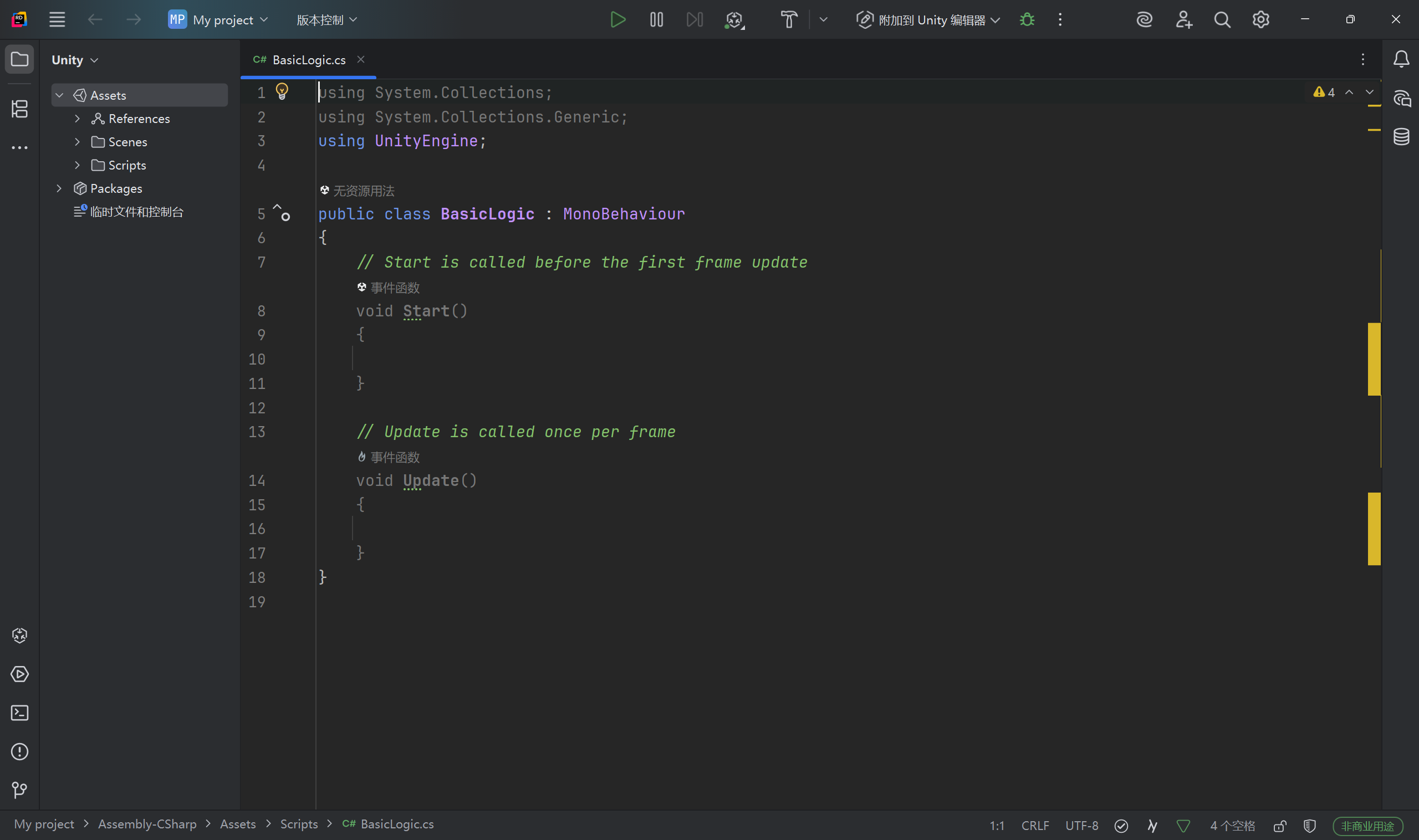
随后, 可以创建一个 C# 文件, 这个文件名称按照类名进行书写即可, 因为一个脚本其实就是一个类. 这里直接创建一个 BasicLogic 的脚本, 作为基础的逻辑.
创建后, 双击打开即可.
[!success] 注意
脚本编辑器我这里推荐使用 JetBrains 家的 Rider, 比 VS 好看, 也更加好用.
我们可以使用 DEBUG, 输出一个日志.
1
2
3
4
5
6
7
8
9
10
11
| using System.Collections;
using System.Collections.Generic;
using UnityEngine;
public class BasicLogic : MonoBehaviour
{
void Start()
{
Debug.Log("** 我的第一个脚本 **");
}
}
|
随后保存代码, 回到 Unity. 我们为了运行这个脚本, 需要将脚本进行挂载. 有两种挂载脚本的方式, 一个是在挂载的物体上, 添加一个 script.
一个就是直接把脚本文件拖动到物体上, 更加简单一些. 随后, 运行游戏, 就可以看到控制台的输出了.
[!abstract] 注意
- 文件名和类名必须一致
- 最好使用大驼峰命名法
脚本的参数
脚本的参数其实就是脚本组件的参数. 我们可能给一个角色设置一下移动速度, 肯定不能直接在代码中写死了, 不然改起来非常的复杂.
所谓参数, 就是类似于下面这种, 可以直接修改的数据.
我们的脚本也是可以有这种参数的. 随便创建一个脚本, 挂载到 gameObject 上后, 在类中提供一下 public 的属性, 就可以视作一个参数. 默认这里是啥都没有的:
我们来到脚本中, 添加一些参数, 一定要是 public 的.
1
2
3
4
5
6
7
8
9
10
11
12
13
14
| using System.Collections;
using System.Collections.Generic;
using UnityEngine;
public class ScriptParams : MonoBehaviour
{
public float speed = 10f;
private void Start()
{
Debug.Log("speed 为 " + speed);
}
}
|
这里回到编辑器, 就可以看到输入框了.
这里的名称和我们的变量名称对应, 如果是其他的单词, 会自动拆分. 建议使用小驼峰.
别的类型都是可以的, 比如下面这样子:
1
2
3
4
5
6
7
8
9
10
11
12
13
14
15
| using System.Collections;
using System.Collections.Generic;
using UnityEngine;
public class ScriptParams : MonoBehaviour
{
public float speed = 10f;
public bool flag;
public int times;
public GameObject flagObject;
private void Start()
{
Debug.Log("speed 为 " + speed);
}
}
|
另外, 我们也是可以给这些参数添加注释的, 方便我们查看参数的用途. 只需要在参数的上面使用如下语法即可添加注解:
1
2
3
4
5
6
7
8
9
10
11
12
13
| using System.Collections;
using System.Collections.Generic;
using UnityEngine;
public class ScriptParams : MonoBehaviour
{
[Tooltip("这是运动的速度")] public float speed = 10f;
private void Start()
{
Debug.Log("speed 为 " + speed);
}
}
|
回到 Unity, 鼠标移动到上面就有提示了.
获取游戏内容
获取当前物体
我们使用脚本是用来操作物体的. 不妨查看一下一个物体的结构:
其实一个物体的位置之类的东西, 都是这个 Transform 组件中的. 所以我们可以获取当前物体的这个组件进行修改即可.
来到脚本中, 我们知道: Start 方法是会自动调用的, 相当于进行了一个初始化的操作. 我们直接在 Start 中进行书写.
我们可以使用如下代码获取当前的物体:
1
| GameObject obj = this.gameObject;
|
获取各种属性
一个物体有很多的属性, 比如名称. 可以直接获取:
1
2
3
4
5
6
7
8
9
10
11
12
13
14
15
16
| using System.Collections;
using System.Collections.Generic;
using UnityEngine;
public class BasicLogic : MonoBehaviour
{
private void Start()
{
GameObject obj = this.gameObject;
string name = obj.name;
Debug.Log("物体的名字为" + name);
}
}
|
另外也可以获取物体的位置, 通过 transform 即可.
1
2
3
4
5
6
7
8
9
10
11
12
13
14
15
16
17
18
19
20
21
22
23
24
| using System.Collections;
using System.Collections.Generic;
using UnityEngine;
public class BasicLogic : MonoBehaviour
{
private void Start()
{
GameObject obj = this.gameObject;
string name = obj.name;
Debug.Log("物体的名字为 " + name);
Transform tr = obj.transform;
Vector3 pos = tr.position;
Debug.Log("物体的位置为 " + pos);
}
}
|
其中的三个量就是对应的 x, y 和 z 坐标.
物体的坐标
坐标分类
物体的坐标有两种:
transform.position 世界坐标, 相对于整个坐标轴的坐标transform.localPosition 本地坐标, 相对于父物体的坐标
例如现在有这样的两个物体:
我们对这个摄像头添加脚本, 查看坐标如何.
可以看到, 全局坐标减去本地坐标就是父物体的坐标了.
[!tip] 简化
其实 this.gameObject.transform.position 可以进行简化, 简化为 this.transform.position 即可.
设置坐标
获取坐标就是直接使用, 这里不多说. 对于设置坐标, 其实位置是一个三维向量 (float), 可以通过 x, y 和 z 来分别获取. 但是设置的时候, 只能通过直接设置 localPosition 之类的方式来进行设置. 不能直接修改 x, y, z.
1
2
3
4
5
6
7
8
9
10
11
12
13
14
15
16
17
| using System.Collections;
using System.Collections.Generic;
using UnityEngine;
public class BasicLogic : MonoBehaviour
{
private void Start()
{
GameObject obj = this.gameObject;
Debug.Log("初始位置为 " + obj.transform.position);
this.transform.position = new Vector3(0, 0, 0);
Debug.Log("新的位置为 " + obj.transform.position);
}
}
|
运动
帧更新
Frame, 就是一个游戏帧. 帧率就是每秒钟刷新多少次的意思. 我们在 Unity 中, 需要使用 Update 方法, 每帧会被游戏引擎自动调用.
1
2
3
4
5
6
7
8
9
10
11
12
13
14
15
| using System;
using System.Collections;
using System.Collections.Generic;
using UnityEngine;
public class BasicLogic : MonoBehaviour
{
private void Update()
{
Debug.Log("Update 更新了, 当前游戏时间为 " + Time.time);
}
}
|
可以看到每一帧都调用了该方法. 同时观察发现, 每次输出的时间差是不固定的. 这是因为 Unity 没有固定帧率, 但是它会尽可能提高帧率.
这个时间差也可以通过 Time.deltaTime 来获取.
无论如何, 我们可以给 Unity 一个近似的帧率, Unity 只会尽量的遵循我们的要求.
1
2
3
4
5
6
7
8
9
10
11
12
13
14
15
16
17
18
19
20
21
| using System;
using System.Collections;
using System.Collections.Generic;
using UnityEngine;
public class BasicLogic : MonoBehaviour
{
private void Start()
{
Application.targetFrameRate = 60;
}
private void Update()
{
Debug.Log("Update 更新了, 当前游戏时间为 " + Time.deltaTime);
}
}
|
根据计算, 如果是 60 帧, 那么大约是 16 毫秒左右进行更新.
可以看到, 更新时间差大概就是 16 毫秒上下进行浮动.
移动物体
有了帧, 我们就可以让物体自己移动了. 首先获取当前的位置, 然后让物体的 x 进行移动试试:
1
2
3
4
5
6
7
8
9
10
11
12
13
14
15
16
17
18
19
20
21
22
23
| using System;
using System.Collections;
using System.Collections.Generic;
using UnityEngine;
public class BasicLogic : MonoBehaviour
{
private void Start()
{
Application.targetFrameRate = 60;
}
private void Update()
{
Vector3 pos = this.transform.position;
pos.x += 0.01f;
this.transform.position = pos;
}
}
|
回到游戏, 运行就可以看到效果了.
匀速运动
其实物体的运动不是匀速的, 因为每次 Update 都是一个固定的距离, 但是我们的时间间隔是不固定的, 每次都不一样.
如果这是游戏, 我们肯定不希望帧数不同我们的运动速度就不同了, 这是不太合理的. 所以我们要解决这个问题.
通常来说, 我们通过 deltaTime 来计算出来我们的运动距离是多少. 我们只需要设置它的移动速度即可.
1
2
3
4
5
6
7
8
9
10
11
12
13
14
15
16
17
18
19
20
21
22
23
24
| using System;
using System.Collections;
using System.Collections.Generic;
using UnityEngine;
public class BasicLogic : MonoBehaviour
{
private int _moveSpeed = 3;
private void Start()
{
Application.targetFrameRate = 60;
}
private void Update()
{
Vector3 pos = this.transform.position;
pos.x += _moveSpeed * Time.deltaTime;
this.transform.position = pos;
}
}
|
这样, 我们的物体移动就是匀速的了.
[!info] 这里的 speed 是什么
可以理解为移动的米数, 这里刚好就是格子的数目, 3 就是三米每秒.
Translate
刚才写的方法还是太麻烦了, 我们直接使用一个 API 来实现即可. 我们可以使用 transform.Translate(dx, dy, dz) 来设置物体在对应方向的坐标增量.
比如, 修改一下刚才的代码:
1
2
3
4
5
6
7
8
9
10
11
12
13
14
15
16
17
18
19
20
21
22
23
| using System;
using System.Collections;
using System.Collections.Generic;
using UnityEngine;
public class BasicLogic : MonoBehaviour
{
private int speed = 3;
private void Start()
{
Application.targetFrameRate = 60;
}
private void Update()
{
float distance = speed * Time.deltaTime;
this.transform.Translate(distance, 0, 0);
}
}
|
现在还是可以实现往 x 方向移动的效果.
如果希望往反方向移动, 只需要设置大小为 -distance 即可.
1
| this.transform.Translate(-distance, 0, 0);
|
相对运动
我们的运动, 可以相对于世界坐标系, 也就是我们直接看到的 XYZ, 也可以相对于自己的坐标系. 这个自己的坐标系, 就是自己的方向为正向, 比如下面这样:
蓝色的 z, 并不是全局的 z, 这就是自己的坐标系. 我们的 Translate 中, 可以指定参考的坐标系是什么.
1
2
3
4
5
6
7
8
9
10
11
12
13
14
15
16
17
18
19
20
21
22
| using System;
using System.Collections;
using System.Collections.Generic;
using UnityEngine;
public class BasicLogic : MonoBehaviour
{
private int speed = 3;
private void Start()
{
Application.targetFrameRate = 60;
}
private void Update()
{
float distance = speed * Time.deltaTime;
this.transform.Translate(0, 0, distance, Space.Self);
}
}
|
这里相对的是自身的, 那么就会按照自身的方向走.
其实默认的, 啥都不写就是参考自身的坐标系; 如果写了, 我们只需要写一个 Space.World, 参考世界坐标系, 就可以看到如下样子了.
1
| this.transform.Translate(0, 0, distance, Space.World);
|
[!tip] 建模规范
其实我们建模的时候, 一般就是要求物体的朝向与 +Z 轴一致, 这样移动就是移动 Z 轴即可.
运动的方向
运动肯定不是漫无目的的, 而是有一个方向. 下面我构建这样一个场景, 有一个红色的物体, 我希望我的小方块往这个红色的东西运动.
基本思路其实很简单:
- 转向目标
- 开始运动
第一步, 转向目标, 就是我们即将研究的旋转了. 首先我们需要获取运动的物体. 我们改一个名字, 方便找到他:
随后就可以开始代码了.
1
2
3
4
5
6
7
8
9
10
11
12
13
14
15
16
17
18
19
20
21
22
23
| using System;
using System.Collections;
using System.Collections.Generic;
using UnityEngine;
public class BasicLogic : MonoBehaviour
{
public float speed = 3;
private void Start()
{
GameObject flag = GameObject.Find("Flag");
this.transform.LookAt(flag.transform);
}
private void Update()
{
float distance = speed * Time.deltaTime;
this.transform.Translate(0, 0, distance);
}
}
|
现在就实现了效果了.
如果我们物体存在重名, 则需要使用路径进行查找. 父物体/子物体这样子.
小练习
我们想要这个东西运动到目标后就停下来, 不走了, 应该怎么写呢?
只需要计算两个物体之间的距离, 只要距离足够小, 就不移动了即可. 这里需要用到向量的计算. 计算两个物体之间的距离, 需要两个坐标, 坐标一减就是向量, 取向量的模即可.
1
2
3
4
5
6
7
8
9
10
11
12
13
14
15
16
17
18
19
20
21
22
23
24
25
26
27
28
29
30
31
32
33
| using System;
using System.Collections;
using System.Collections.Generic;
using UnityEngine;
public class BasicLogic : MonoBehaviour
{
public float speed = 3;
public GameObject flagObject;
private void Start()
{
this.transform.LookAt(flagObject.transform);
}
private void Update()
{
float distance = speed * Time.deltaTime;
Vector3 pos1 = this.transform.position;
Vector3 pos2 = flagObject.transform.position;
Vector3 disVec = pos1 - pos2;
float dis = disVec.magnitude;
if (dis >= 0.5)
{
this.transform.Translate(0, 0, distance, Space.Self);
}
}
}
|
现在已经会在附近停止了.
[!error] 注意
这里我提前使用了一个小知识点, 就是物体是可以从外部传入的. 只要是 public 的内容, 均可在 Unity 的组件面板处进行设置.
旋转
什么是旋转
Unity 中, 物体的旋转是相对于轴心的. 也就是我们物体上的原点.
我们修改角度, 就会顺时针旋转对应的角度.
脚本控制
还是一样, 给这个物体添加一个新的脚本, 这里就叫做 RotateLogic. 我们之前位置修改的是 position, 但是 rotation 一般是内部修改的, 我们直接操作是不好的. 因为旋转有四个值.
代码中, 我们使用欧拉角来实现. 这个欧拉角就是我们看到的三个值了. 当然, 对应的也有相对于什么进行转动.
1
2
3
4
5
6
7
8
9
10
11
12
| using System.Collections;
using System.Collections.Generic;
using UnityEngine;
public class RotateLogic : MonoBehaviour
{
void Start()
{
this.transform.localEulerAngles = new Vector3(0, 45, 0);
}
}
|
运行游戏, 角度就变了.
欧拉角, 360 是一个周期, 所以如果超出去了, 数值为 $2\pi + n$ 度, 则直接就是 $n$ 度.
旋转效果
其实就是在每次更新的时候, 都修改一下当前的欧拉角即可.
1
2
3
4
5
6
7
8
9
10
11
12
13
14
15
16
17
18
| using System;
using System.Collections;
using System.Collections.Generic;
using UnityEngine;
public class RotateLogic : MonoBehaviour
{
private void Update()
{
Vector3 angles = this.transform.localEulerAngles;
angles.y += 0.5f;
this.transform.localEulerAngles = angles;
}
}
|
匀速转动
和运动的是一样的原理, 我们可以直接给一个旋转角速度, 然后旋转的角度是角速度乘以时间差即可.
1
2
3
4
5
6
7
8
9
10
11
12
13
14
15
16
| using System;
using System.Collections;
using System.Collections.Generic;
using UnityEngine;
public class RotateLogic : MonoBehaviour
{
public float rotateSpeed = 30;
private void Update()
{
Vector3 angles = this.transform.localEulerAngles;
angles.y += rotateSpeed * Time.deltaTime;
this.transform.localEulerAngles = angles;
}
}
|
Rotate
和运动一样, 我们之前的写法还是比较麻烦. 这里可以直接使用 Rotate 旋转相对角度, 分表代表 dx, dy, dz, 三个方向旋转的角度.
1
2
3
4
5
6
7
8
9
10
11
12
13
14
15
| using System;
using System.Collections;
using System.Collections.Generic;
using UnityEngine;
public class RotateLogic : MonoBehaviour
{
public float rotateSpeed = 30;
private void Update()
{
this.transform.Rotate(rotateSpeed * Time.deltaTime, rotateSpeed * Time.deltaTime, rotateSpeed * Time.deltaTime);
}
}
|
这样旋转写起来就简单很多了.
自转与公转
自转, 就是物体绕着自身的轴进行旋转; 公转就是绕着别的东西进行旋转. 为了实现公转, 其实就是父物体转动带动子物体, 那么视觉上就实现了一个公转的效果.
1
2
3
4
5
6
7
8
9
10
11
12
13
14
15
| using System;
using System.Collections;
using System.Collections.Generic;
using UnityEngine;
public class RotateLogic : MonoBehaviour
{
public float rotateSpeed = 60;
private void Update()
{
this.transform.Rotate(0, rotateSpeed * Time.deltaTime, 0);
}
}
|
注意, 这里转的是 y 轴.
鼠标与键盘输入
我们玩游戏, 肯定需要使用鼠标和键盘, 我们自然需要获取键盘的输入, 否则无法与游戏进行交互的逻辑. 还是直接给一个小方块作为演示, 这里的脚本名称就叫做 KeyTest 了.
对于键盘鼠标的事件, 肯定是随时进行监听, 所以我们需要在 Update 里面实现. 首先实现鼠标的点击.
鼠标
我们通过 Input 来获取输入, 这里的是鼠标, 如果想仅仅在按下的瞬间执行, 可以使用如下方法:
1
2
3
4
5
6
7
8
9
10
11
12
13
14
15
16
17
| using System.Collections;
using System.Collections.Generic;
using UnityEngine;
public class KeyTest : MonoBehaviour
{
void Update()
{
if (Input.GetMouseButtonDown(0))
{
Debug.Log("按下了鼠标左键");
}
}
}
|
如果持续的按下, 其实就是没有 Down 的方法. 每一帧都会调用这个方法.
1
2
3
4
5
6
7
8
9
10
11
12
13
14
15
| using System.Collections;
using System.Collections.Generic;
using UnityEngine;
public class KeyTest : MonoBehaviour
{
void Update()
{
if (Input.GetMouseButton(0))
{
this.transform.Translate(0, 0, 0.5f);
}
}
}
|
现在物体就会在按下鼠标的时候往前走了.
当然, 鼠标抬起也是可以有方法的, 自然就是 Up 了.
1
2
3
4
5
6
7
8
9
10
11
12
13
14
15
16
17
18
19
20
| using System.Collections;
using System.Collections.Generic;
using UnityEngine;
public class KeyTest : MonoBehaviour
{
void Update()
{
if (Input.GetMouseButton(0))
{
this.transform.Translate(0, 0, 0.5f);
}
if (Input.GetMouseButtonUp(0))
{
this.transform.position = new Vector3(0, 0, 0);
}
}
}
|
这样就会在按下去的时候离开, 松开立马回来了.
键盘
对应鼠标, 也是三种情况, 按下, 抬起, 和按住键盘. 命名方式和鼠标的是一摸一样的. 不过鼠标是 Mouse, 键盘是 Key.
1
2
3
4
5
6
7
8
9
10
11
12
13
14
15
16
17
18
19
20
21
22
23
24
25
26
27
28
29
30
| using System.Collections;
using System.Collections.Generic;
using UnityEngine;
public class KeyTest : MonoBehaviour
{
void Update()
{
if (Input.GetKey(KeyCode.D))
{
this.transform.Translate(0.1f, 0, 0);
}
if (Input.GetKey(KeyCode.A))
{
this.transform.Translate(-0.1f, 0, 0);
}
if (Input.GetKey(KeyCode.W))
{
this.transform.Translate(0, 0.1f, 0);
}
if (Input.GetKey(KeyCode.S))
{
this.transform.Translate(0, -0.1f, 0);
}
}
}
|
现在就实现了一个很简单的上下左右移动了.
官方文档
官方文档分为两个部分, Manual 和 API, 这是我们最最重要的东西, 几乎遇到问题, 都会需要查阅这些文档. 默认的, 安装的时候自带了一份英文文档:
我们一般也就看看 API 参考手册了. 因为一些类的方法之类的东西, 都会在文档中提及.